Connecting to Wi-Fi
On first start the display shows a QR code. Scan it with your phone, or join the network SeaGlance-XXXX with the password shown. A set-up page opens (if not, go to 192.168.4.1). Pick your home network, type its password, and SeaGlance restarts on your Wi-Fi.
Using the knob
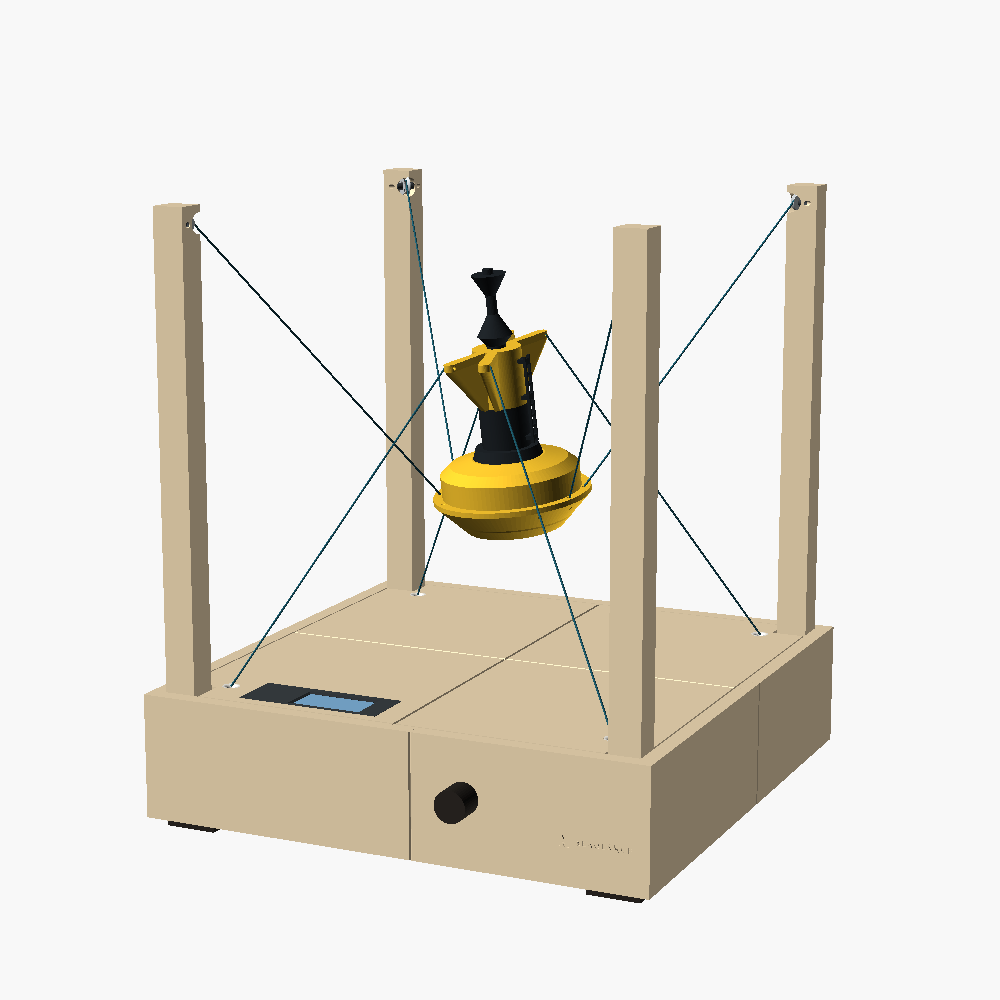
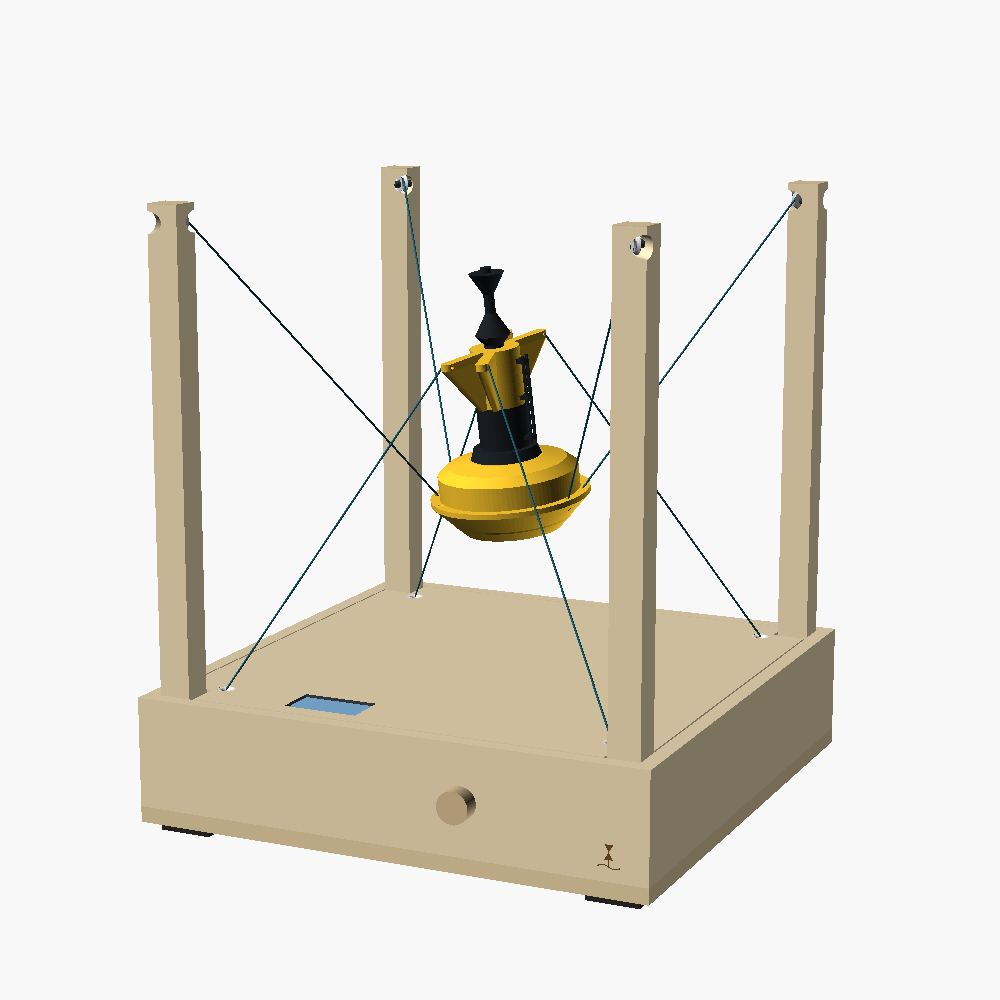
Turn it to open the buoy menu. Hold it for a second for Settings. Hold it for three seconds to put SeaGlance to rest; turn or press to wake it. In a menu, turn to move and press to choose. A menu you leave alone for 30 seconds closes by itself.
Choosing another buoy
Turn the knob: the buoy menu opens in the folder of the current buoy. Press a folder (marked >) to open it, < Back to go up, and press a buoy to pick it. Buoys marked * play their real recorded motion. You can also choose at seaglance.eu/my with your owner code: link your SeaGlance once in Settings › Buoy and sea › Choose on website, then pick from the list or the map. It arrives within five minutes. The last choice wins, knob or website.
Favourites
At seaglance.eu/my, tap ☆ next to a buoy. It goes in a Favourites folder at the top of the buoy menu on your SeaGlance, so the buoys you like are one turn away. Unlinking the website clears them.
Replay and demo seas
Settings › Buoy and sea › Replay and demo plays the last 24 hours or 7 days as a time-lapse, saves the last 24 hours to keep, and plays your saved stretches. Demo seas work without Wi-Fi. Back to live sea, or picking a buoy, returns to the live waves.
Night rest
In Settings › Night rest you choose the hours when the buoy comes to rest and the motors and display switch off. Set your Time zone first so the hours match your clock. Rest now, or holding the knob for three seconds, rests it right away. Turn or press the knob to wake it early.
Moving or storing it
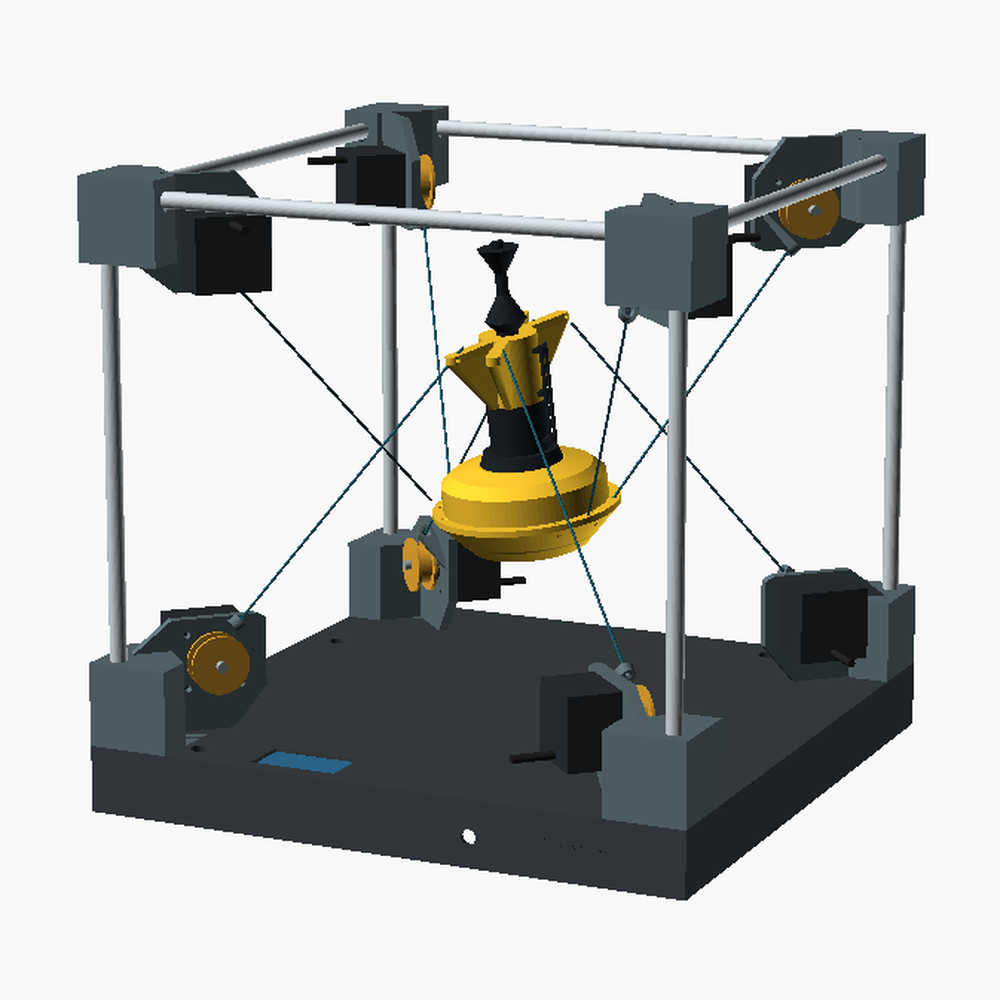
Choose Settings › Lines and motors › Slack lines before you lift or carry SeaGlance. The lines go loose and the motors switch off. Press the knob to tighten them again: the display then walks you through it with the stringing stand.
The lines look loose
Choose Settings › Lines and motors › Tighten lines. The buoy goes still and rises; put the stringing stand under it and it lowers into the cup. Hold the buoy upright, press the knob, and keep holding until the display asks if all lines are tight. Then take the stand away, press the knob, and the buoy goes back to the sea.
Software updates
SeaGlance looks for new software once a day and installs it over Wi-Fi by itself, during the night rest if you set one. Settings › Software › Auto updates switches this off, and Check for update looks right away. Keep the power on until it restarts. If an update fails, the old software stays as it was.
New Wi-Fi or a fresh start
In Settings › Wi-Fi and reset, Forget Wi-Fi clears the network so you can set up a new one. Factory reset clears all settings and starts the set-up again. It keeps the motor set-up unless you say yes to that too.
A message about the charger
SeaGlance needs a USB-C charger of 20 W or more. A phone charger with less power can't move the motors. If the display says Charger changed, unplug the charger and plug it in again.
The buoy barely moves
That is usually the sea: a flat calm buoy rocks very little. Choose a buoy in open ocean, or check the wave height on the display. Movement is scaled to fit the frame, so big seas look lively but stay safe.